The Docs tab provides many options for working with documents. And there are multiple ways to access this screen:
- Main jobs tabs, pull up list of jobs, select one, and click on the InfoPanel Docs button
- Main jobs tabs, pull up list of jobs, select one and right click to select documents
- Open job file and click on the documents tab
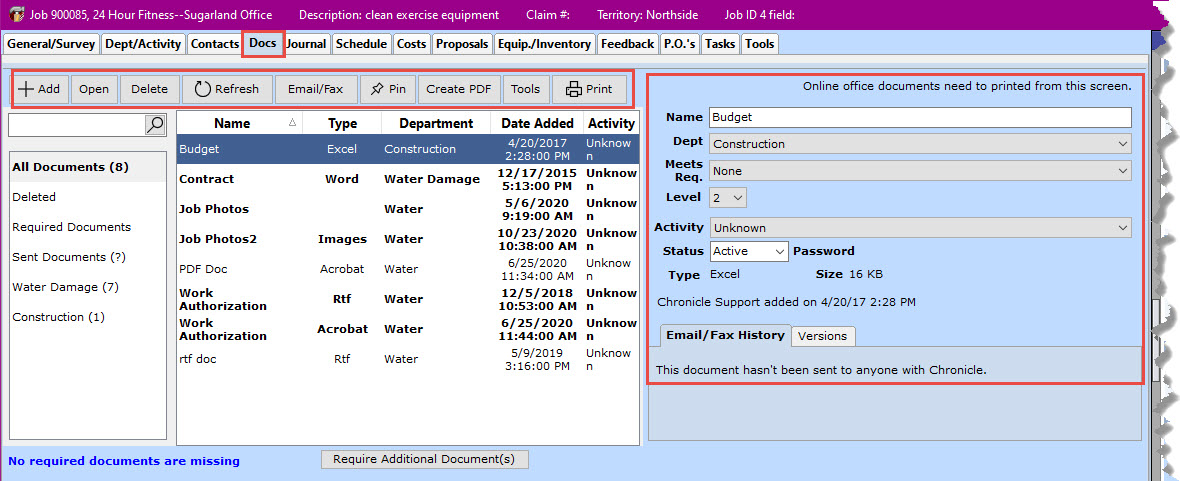
The most common thing you will use is to:
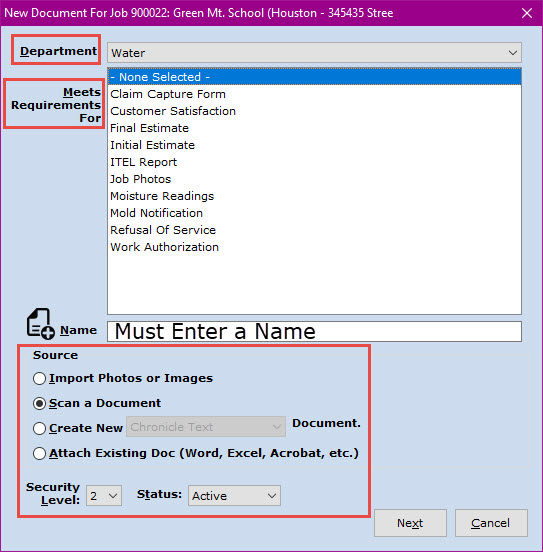 |
Add documents
|
Next comes Open, Delete, and Refresh and they do exactly what the button says. When you click on the Email/Fax button the email/journal screen opens where you have many options when sending an attachment.
|
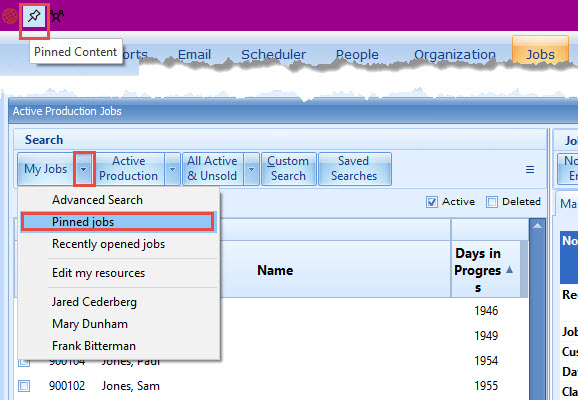
Let's say you have a couple of jobs that are big and will last a while to complete. You can Pin them so they are easy to get to. These are the two places where you can find pinned jobs. Next, you can create a PDF of the document or
|
 |