Please follow the steps exactly as they are seen in this article.
Requirements for adding Secure Digital Signatures:
- that you have Chronicle Email setup.
- that you have a license for Chronicle PDF Converter (an add on feature that automatically sends all outgoing email attachments as PDFs).
1. START by opening Chronicle's Main System Setup>Program Links>RightSignature tab.
2. BEFORE you set up your RightSignature account:
- Go to Chronicle's Main System Setup> Program Links tab> RightSignature tab.
- Identify the employee who will be responsible for receiving RightSignature notifications. This will be the person that gets the emails to rightsignature@yourdomain.com (you will not be adding this email address under the person profile).
- This includes the Rightsignature activation email and any future RightSignature communication about the account (see graphic below).

3. NEXT, to setup RightSignature account, click on the "Go to RightSignature.com" button. This takes you to the Right Signature website.
You must use the following email format as your email address and Username for the right signature account in order for this to work: rightsignature@yourdomain.com
You must use your primary Chronicle domain.

Please sign up for Right Signature by either, calling 855-895-4862, email support@rightsignature.com or go to the www.rightsignature.com and chat with a support specialist.
These instructions are for a new RightSignature account. If you have an existing RightSignature account please contact Chronicle Support at Send us a message before you complete this process.
Note: You must use the following email format as your email address for the right signature account in order for this to work: rightsignature@yourdomain.com.
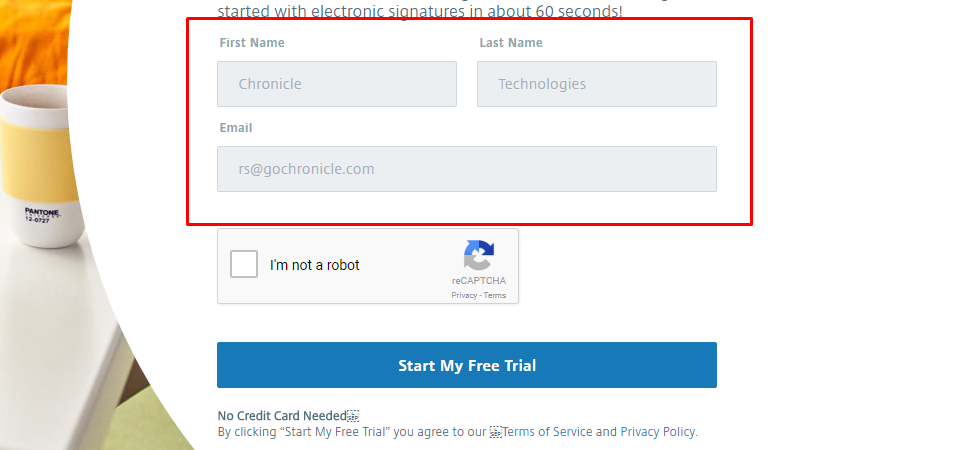
- Setup your account using your full company name (Not personal name) and the email address rightsignature@yourdomain.com (Do not use the above selected employee's email address. Chronicle will take care of the delivery of activation email, billing info emails, etc.)
- Select Start My Free Trial.
RightSignature will send the employee you selected above an email containing an activation code. They need to check their email tab in Chronicle to activate the account by either clicking the button in the email or clicking on the code or copy and pasting it to a browser.

The selected employe will activate the account and will need to create a password.

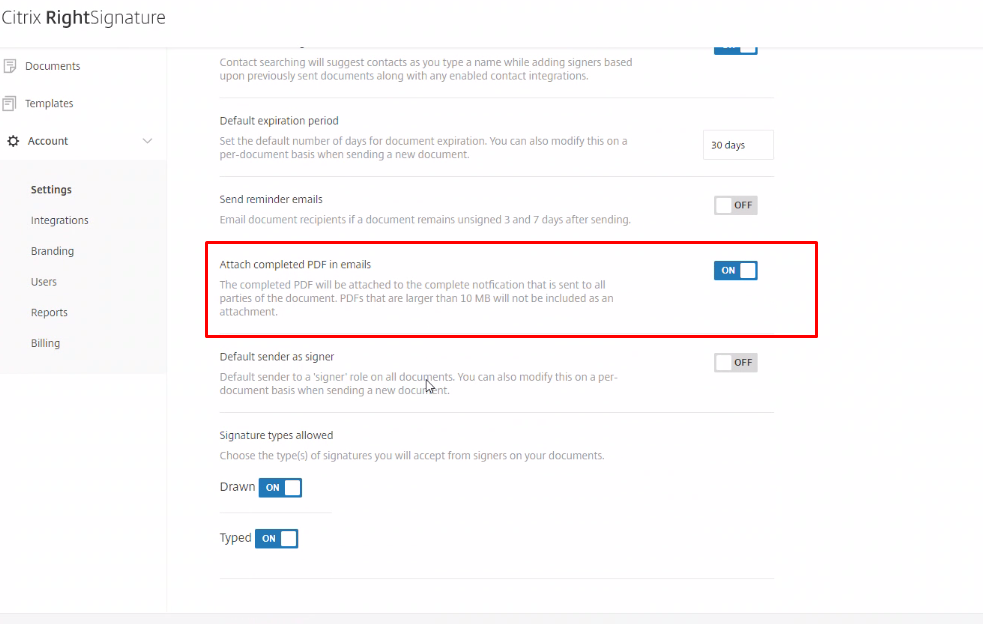
IMPORTANT: in the account setup turn on the setting to attach the Signed PDF to email
4. Go back to the Main System Set in Chronicle.
ENTER the mail address Right Signature is to use. Please use rightsignature@yourdomainname.com

5. RECORD the newly created password in the field provided in the Main System Setup.

If you want another employee to receive the RightSignature emails instead, simply pick another employee from the drop down in step two. No need to do anything else as the account is already set up
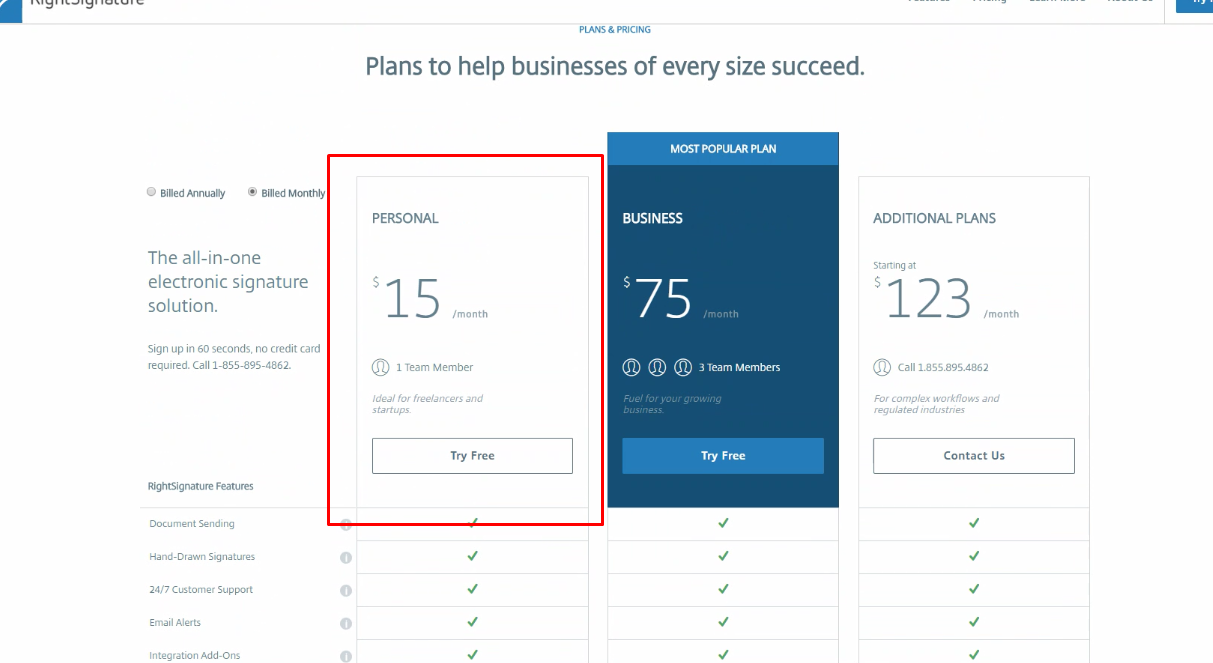
6. We suggest you use the free trial to it's full extent, but once the trail ends you will need to pick a plan and add a payment options.
- Pick the personal plan
- enter your credit card information
- select your billing cycle
NEXT: SDS Part 1- Creating Secure Digital Signature Documents