|
|
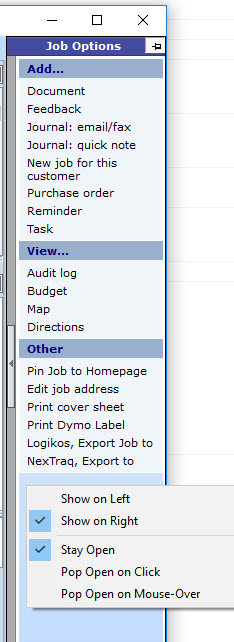
This toolbar in the job file has shortcuts for various job related options. You can choose how it is to be displayed by right-clicking the empty section at the bottom of the toolbar. A menu with options will appear to control where the tool bar appears (left or right) and whether it always open (our recommended option unless you have a small screen) or whether it should pop open when you click or mouse-over it. Your changes are saved so the toolbar will remember your settings for the next job you open. Adding Job Feedback: There is a new tab in the job file that allows you to enter feedback from customers. It can be about employees as a whole or the feedback can be about a specific employee. These results can be visible in the Bonus Manager.
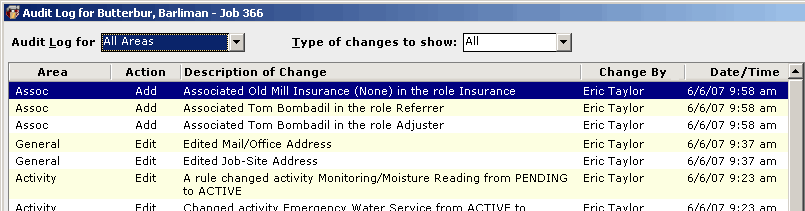
Audit Log: This shows a record of all changes to this job, who made each change, and when. The records are date and time stamped and is why each employee should have their own login. |
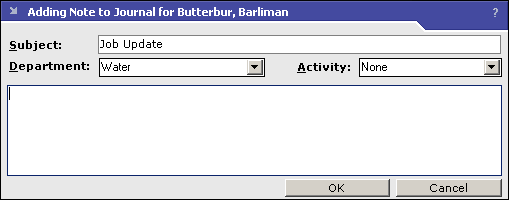
Add a Quick Note to the Journal: This adds a note to the job’s journal, but it only collects a subject, department, activity, and journal text. The subject and department are automatically filled in so you only have to type the note you want to add. (To add a quick journal related to a particular department or activity, you can also right-click the department or activity and pick Add Quick Journal there.) This option is much faster than adding a full journal. If you want to send a journal to someone, you must use Add a Journal option below to add a full journal.