You can add events starting from different places in the program and all will take you to the add event screen. When you have set the event up, click Save.
- On the Scheduler tab, click the Add button.
- On any calendar, set your cursor at the start time and drag to the end time and release.
This will open the event screen with the selected times already set. - Click on the Quick Add menu in the upper right hand corner of the screen and select Calendar event.
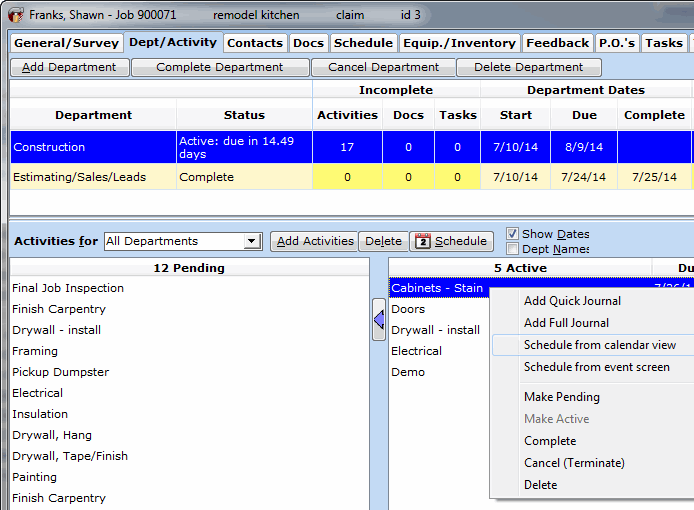
- From the Dept/Activities tab in a job, select the event(s) to be scheduled and click on the Schedule button above the list. This will take you to a Scheduler screen so you can draw an event or click to open an event box depending on your customization options.
- From any list of people, organizations, or jobs, right click on any name and select Add Calendar event.
- From the Dept/Activities tab in a job, right click any activity and click Schedule from calendar view or Schedule from event screen.
- While on the Email tab, click the Calendar button. If the selected email is associated with a job, the event is also associated with that job.
- From within the Job File, go to the Schedule Tab, you can Add events the same way as on the Main Scheduler Screen.